A practical, symptom-first guide to diagnosing power, app, Wi-Fi, connection, and partial-run problems in Govee permanent outdoor lights.
If your Govee lights stopped working, don’t start by deleting the device from the app or pulling every section off the house. First, identify what failed: the entire system, one run, a single light, app control, or an automation. That distinction usually points to the power supply, controller, connector, network, or settings and prevents an unnecessary full reset.
This guide covers permanent outdoor lights and other Govee smart lighting systems. Model hardware and reset steps vary, so use the label on your controller or power adapter to confirm the exact model before following model-specific instructions.
Govee Lights Stopped Working? Start With the Symptom
Walk outside after dark and note exactly what the system is doing. Then check the Govee Home app without changing settings yet. A quick symptom check is more useful than repeatedly unplugging the system.
| What you see | Most likely area to check | Best first step |
|---|
| No lights anywhere | Outlet, GFCI, power adapter, controller | Test the outlet and inspect the power path |
| Lights work, but the app says offline | Wi-Fi, Bluetooth, router, app permissions | Stand near the controller and test Bluetooth control |
| One section is dark or flickers | Connector, extension, damaged cable, unsupported layout | Power off and inspect the last working connection |
| Wrong colors or partial response | Loose connection, selected model, segment configuration | Check connections and the device settings |
| Manual control works, schedules do not | Automation, time zone, internet connection | Review schedule, time zone, and online status |
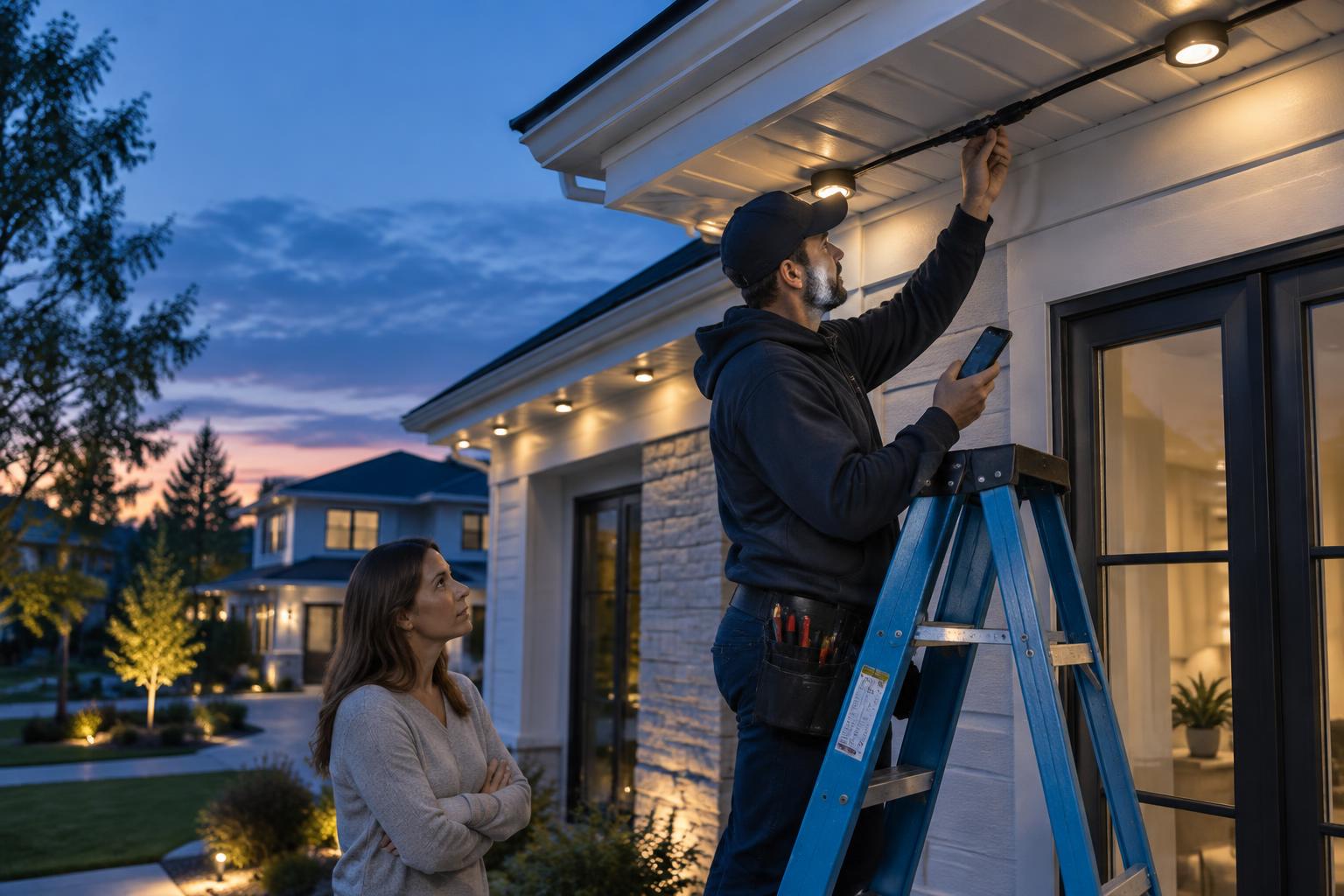
If the lights are mounted high or the controller is difficult to reach, stop at ground-level checks. A local professional found through LightPro Connect’s installer marketplace can inspect the run without turning a troubleshooting job into a ladder accident.
1. Check Power Without Assuming the Outlet Works
A glowing landscape transformer or nearby porch light doesn’t prove that the Govee receptacle has power. Outdoor receptacles are often protected by a GFCI device located in a garage, basement, bathroom, or another exterior outlet.
- Unplug the Govee power adapter and inspect it for heat damage, cracking, moisture, or corrosion.
- Press the TEST and RESET buttons on the relevant GFCI receptacle if it is safe and dry.
- Test the outlet with a known-working lamp or an approved receptacle tester.
- Check the home’s breaker panel if the outlet remains dead.
- Reconnect the original Govee adapter only after the outlet is confirmed working and all plugs are dry.
Never bypass a GFCI, use a damaged adapter, open a sealed power supply, or work on wet electrical connections. The U.S. Consumer Product Safety Commission explains why GFCI protection matters around outdoor equipment. If the receptacle repeatedly trips, disconnect the lights and have the circuit and lighting system inspected.
When all sections are dark but the outlet works, use a controlled power cycle before a factory reset. Turn the device off in the app if it is reachable, unplug the adapter, wait about 30 seconds, and reconnect it. Give the controller a minute to boot and reconnect.
This simple step can clear a temporary controller or network state while preserving scenes and automations. Avoid rapid unplug-and-replug cycles. Some smart devices interpret repeated power changes as a special command, and power supplies need time to discharge.
If your Govee lights stopped working immediately after a storm, outage, or breaker trip, inspect the power adapter and controller before trying more resets. A surge can affect one component while leaving the outlet operational.
3. Check the App and Wi-Fi When Govee Lights Stopped Working
Use the physical control button, if your model has one. If the lights respond locally but appear offline in Govee Home, the light run and power supply are probably functioning. Focus on the phone, app, and network instead.
- Enable Bluetooth and stand close to the controller.
- Confirm the phone has local-network and Bluetooth permissions for Govee Home.
- Restart the app, then restart the phone if needed.
- Confirm the controller is within reliable Wi-Fi range.
- Check whether the router name or password recently changed.
- Temporarily disable a VPN or privacy feature that may block local-device discovery.
Many smart-home devices use 2.4 GHz Wi-Fi during setup. Follow the requirements shown for your exact model in the app rather than changing the entire home network. Govee maintains model documentation and support resources in its official support center.
4. Trace the Run When Govee Lights Stopped Working Partway
When the first part of the roofline works and everything after it is dark, the failure is often near the transition between the last working light and the first failed light. Turn off and unplug the system before touching connectors.
From the ground, look for a pulled connector, pinched cable, sagging extension, damaged jacket, or a connection sitting where water can collect. If the run is accessible without climbing, verify that threaded collars are seated as the model instructions require. Do not force mismatched connectors.
Why the failure point may be one connection earlier
Power and data travel through the run. The first dark light is not always the failed part; the output side of the previous light or the cable between them may be responsible. A technician will usually test from the last known-good point instead of replacing the entire strand.
Check the layout against the model limits
Permanent-light models do not all support the same total length, number of segments, extension placement, or branch arrangement. A system may behave unpredictably when sections from different product families are mixed or when the installed layout exceeds its documented limit. Compare the model number and current arrangement with the manual before buying replacement parts.
5. Inspect Outdoor Connections for Moisture and Strain
If your Govee lights stopped working after rain, freezing weather, roof work, or gutter cleaning, pay special attention to connections and cable routing. Weather resistance applies to specific components under stated installation conditions; it does not make every open connector or damaged cable waterproof.
- Disconnect power before opening or reseating any low-voltage connector.
- Let wet connectors dry fully according to the manufacturer’s guidance.
- Look for green or white corrosion, bent pins, torn seals, and cross-threaded collars.
- Check that cable is supported and not carrying the weight of a hanging section.
- Keep service loops and connectors away from gutter discharge and standing water.
On a ladder, installers also check details that are hard to see from the driveway: a cable crushed behind J-channel, a connector pulled tight around a gable return, or a fastener driven through wire insulation. These are repair issues, not app-setting problems.
6. Review Scenes, Schedules, and Segment Settings
If every light can display a normal color manually, the hardware may be fine. Open the device page and temporarily choose a simple solid color at moderate brightness. Then review timers, DreamView groups, music modes, segment selections, and any Alexa or Google Home routines that also control the device.
Confirm the app’s time zone after travel, daylight-saving changes, router replacement, or account migration. Disable one automation at a time rather than deleting all of them. This makes it possible to identify the conflicting rule and preserve the rest of the setup.
7. If Govee Lights Stopped Working, Reset Only as a Last Resort
Check for an app or firmware update after power and connectivity are stable. Keep the phone nearby and avoid interrupting power during a firmware update. If an update fails, follow the message shown in Govee Home or contact official support with the model number and device details.
A factory reset can erase pairing, scenes, groups, and automations. Because reset sequences differ by model, don’t rely on a generic button combination from a forum. Use the model-specific manual or the instructions provided by Govee support. Record useful scene settings before resetting.
When to Stop Troubleshooting and Call an Installer
Stop if the GFCI trips repeatedly, a power adapter smells hot, cable insulation is damaged, water is inside a connection, or the failed section requires roof access. Also call for help when a hidden wire path or enclosed mounting track must be opened.
An experienced installer can isolate the controller, adapter, extension, and light sections; check the installed length against model limits; and repair mounting or cable strain. If replacement is more practical, use the home lighting visualizer to mark the rooflines you want and estimate the run before requesting service.
LightPro Connect is manufacturer-neutral, so you can also compare supported permanent-light brands rather than being pushed toward one system. If you already own Govee lights, state the exact model and symptoms when you request quotes from local installers.
A clear problem report saves time. Take one wide photo of the installation and close photos of any visible damage without climbing. Then record:
- The model number from the controller, adapter, box, or app
- Approximate purchase and installation dates
- Whether all lights, one section, or app control failed
- What happened immediately before the failure
- The color and behavior of any controller indicator
- The troubleshooting steps already completed
- Order information if the product may be under warranty
Do not post serial numbers, order numbers, your home address, or account details in a public forum. Share those only through the manufacturer’s official support channel or the private LightPro Connect system.
Frequently Asked Questions
Why have all my Govee lights stopped working?
A dead outlet, tripped GFCI, disconnected adapter, controller fault, or damaged first connection can shut down the whole run. Confirm outlet power and inspect the adapter before changing app settings. If the GFCI trips again or equipment shows heat or water damage, leave it disconnected and arrange an inspection.
Why have my Govee lights stopped working after one section?
The likely fault is near the last working light, its output connection, the next cable, or the first dark light. Power off the system before inspecting connections. Also confirm that the total run, extension placement, and connected sections are supported by the exact model.
Why are my Govee lights on but offline in the app?
If physical controls still work, check Bluetooth permissions, local-network access, Wi-Fi range, router changes, and the phone app. Stand near the controller and try local control first. Avoid a factory reset until you have ruled out network and permission issues because resetting can remove scenes and automations.
Can I replace one failed light or section?
Replacement options depend on the product family and warranty. Do not splice a sealed system or combine visually similar parts unless the manufacturer documents compatibility. Give Govee support the model number and failure point, or ask an installer to test the run before ordering parts.
Will resetting Govee lights fix them?
A reset may help a pairing or configuration problem, but it will not repair a dead outlet, damaged cable, wet connector, or failed power supply. Use it after power, connections, Bluetooth, Wi-Fi, and settings have been checked, and follow the reset instructions for the exact model.
How much does professional troubleshooting cost?
Pricing depends on roof access, system length, concealed wiring, replacement parts, and local labor rates. Ask whether the visit includes diagnosis only or an approved repair allowance. A detailed request with photos, model information, and the failure pattern helps installers quote the work accurately.